
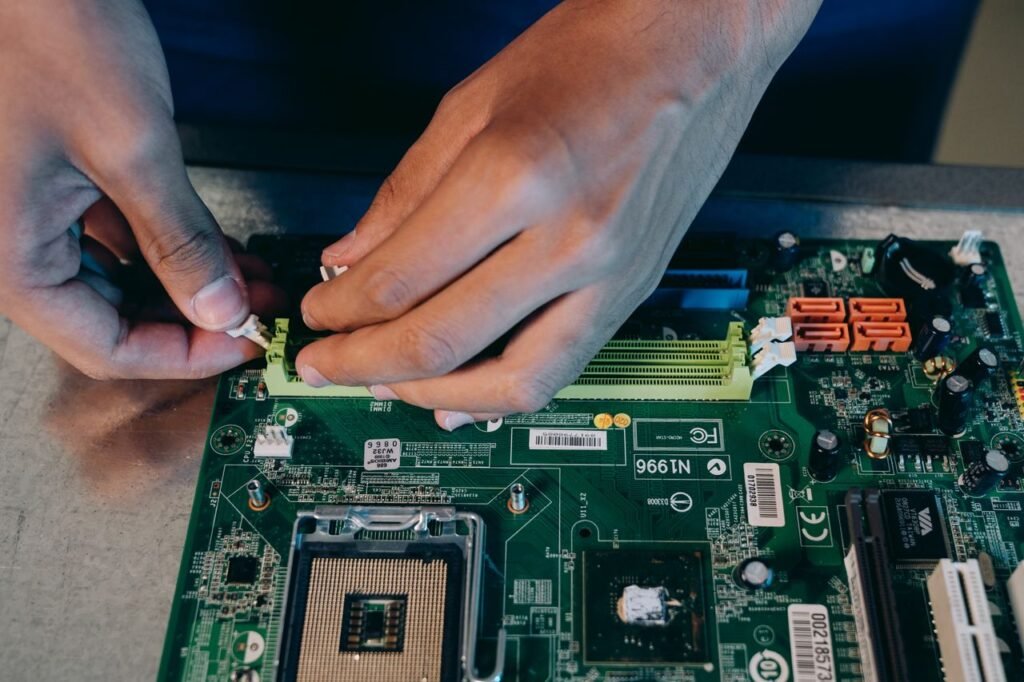
You just opened your computer case, or you’re about to, and a nagging thought hits you: did you miss something important before touching anything inside?
That worry is fair. A single wrong move before you even start can fry a memory stick, shock a motherboard, or worse, hurt you.
Most people jump straight to cleaning dust or swapping a part, skipping the one move that keeps both the machine and the person safe. Skip it, and you risk a shorted board, a ruined drive, or a jolt strong enough to sting your hand.
The good news is that the correct first move is simple, quick, and takes less than a minute to do properly. Once you know what it is and why it matters, every other maintenance task becomes far safer.
What Is The First Step To Performing Hardware Maintenance?
The first step to performing hardware maintenance is to turn off the computer and remove its power source. This means shutting the machine down properly, then pulling the power cable from the wall outlet.
This single action cuts off every path electricity could take into the case. Without it, live current still runs through the motherboard even while the screen looks blank.
Many people assume switching off the monitor or hitting the power button is enough on its own. It isn’t, because some components stay energized until the cable is physically unplugged.
Once the cord is out, wait a few seconds before opening anything. Capacitors inside a power supply can hold a small charge briefly, even after the plug is removed.
This step applies whether you’re cleaning a desktop tower, replacing a laptop battery, or upgrading memory on a server. No exceptions exist, regardless of how small or quick the task seems.
Why This Step Comes Before Anything Else?
Skipping this step doesn’t just risk a mistake, it risks real harm to you and the device. Two dangers sit behind this rule, and both are easy to underestimate.
The first danger is physical: live electricity inside an open case can shock you or short a component instantly. The second is quieter but just as costly, since static electricity does its damage without any warning at all.
Understanding both threats makes the reasoning behind this first step much easier to remember.
The Danger Of Working On A Live Machine
An open computer case exposes wires, connectors, and circuit boards that normally stay hidden. If power is still flowing, touching the wrong pin can send current straight into your hand.
Beyond personal safety, a live board is also far more likely to short out. A dropped screw or a stray tool touching two contacts at once can destroy a motherboard in an instant.
This is also why many technicians disconnect the UPS or surge suppressor as well, not just the wall outlet. Backup power devices can still feed electricity into a system even after the main plug is pulled.
What Static Electricity Can Quietly Destroy?
Static buildup on your body doesn’t always feel like anything. Yet it carries enough voltage to fry a chip the moment you touch a sensitive part.
According to Dell’s guidance on electrostatic discharge, ESD events can harm electronic components inside a computer, and static can build up on a person’s body or an object before discharging into the machine. Dell also notes that touching a grounded metal object, such as an unpainted section of the computer’s I/O panel, helps discharge that static safely before you interact with anything electronic.
This is why powering down alone isn’t the full safety picture. It’s the foundation, but grounding yourself matters just as much once the case is open.
The Safety Checklist Before You Open The Case
Powering down is step one, but a short checklist keeps every other risk in check too. Run through these before removing a single screw.
- Shut down the computer fully through the operating system, not just the monitor.
- Unplug the power cable from the wall outlet, not only the power strip.
- Disconnect the UPS or surge suppressor if your setup includes one.
- Move to a clean, dry workspace away from carpet or fabric surfaces.
- Set the case on a flat, stable surface before opening it.
Each of these steps supports the same goal: removing every source of stray electricity before you touch internal parts.
What Comes Right After Powering Down?
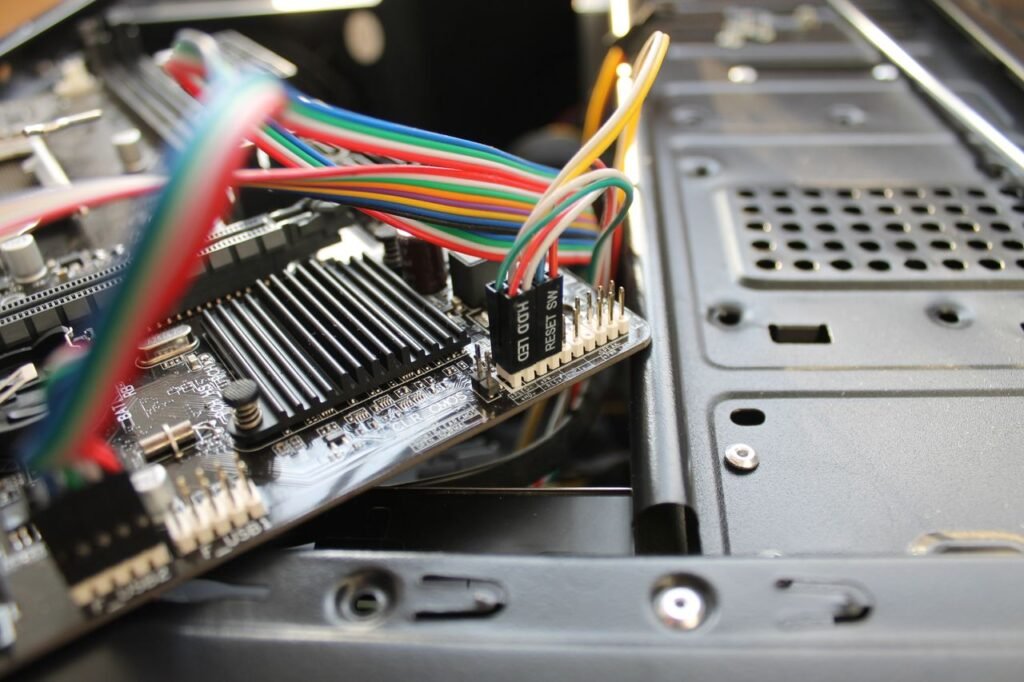
Once the machine is off and unplugged, two more actions come immediately after. Both protect the hardware from the second, quieter threat: static discharge.
Neither takes long, but skipping them undoes much of the safety you gained by powering down in the first place.
Disconnecting Cables And Peripherals The Right Way
Pull out any keyboards, mice, external drives, and monitor cables before opening the case. This clears clutter and removes any chance of a peripheral feeding a small current back into the system.
Label cables or take a quick photo first if your setup has several connectors. This small habit saves confusion later when it’s time to plug everything back in.
Handle each cable by its connector, not the wire itself. Pulling on the cord can loosen the pins inside or damage the connector over time.
Grounding Yourself So Static Never Gets A Chance
Wear an anti-static wristband clipped to a grounded metal surface if you have one available. This constantly drains static from your body while you work.
Without a wristband, touch the unpainted metal frame of the case every few minutes. This resets your body’s charge before it builds up enough to cause harm.
Avoid working on carpet, and skip wearing wool or fleece while handling internal parts. Both materials generate static easily and raise your risk of an accidental discharge.
Mistakes That Trip Up Even Careful Users
A few habits undo all the careful prep work described above. Watch for these common slip-ups during routine maintenance.
- Assuming a laptop is safe simply because the screen is off.
- Forgetting to remove the laptop battery before opening the case.
- Touching internal components right after unplugging, without a short pause.
- Working near open drinks or in a dusty, humid room.
- Skipping the grounding step because “it’s just a quick job.”
Each mistake seems minor on its own. Together, they explain why so many hardware failures happen during maintenance rather than regular use.
Final Thoughts
Hardware maintenance isn’t complicated, but it does reward patience at the very start. Turning off the machine and pulling the power cord takes seconds, yet it prevents most of the damage that happens during repairs.
Pair that with grounding yourself and disconnecting peripherals, and you’ve covered both major risks: live current and static discharge. From there, cleaning dust, checking connections, or swapping parts becomes far less risky.
Preventive maintenance done this way, safely and consistently, is what keeps a computer running for years instead of failing at the worst possible moment.