
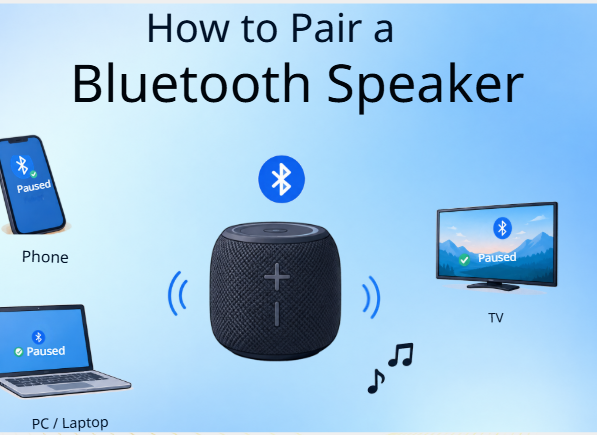
A Bluetooth speaker is a speaker that receives sound from a phone, laptop, or TV as radio waves and plays it wirelessly. Now, technology is omnipresent. In 2025 alone, the Bluetooth SIG estimates more than 5.3 billion Bluetooth devices to ship.
This reach is from a common standard, first created in 1998 by five firms, including Ericsson and Intel. Because they agree on the same rules, nearly any speaker can speak to virtually any device.
So when a speaker won’t connect, hardware is almost never the issue. The problem is that each device hides its Bluetooth settings somewhere else. The processes alter when switching from Android to iPhone to Windows.
Here’s how to use a Bluetooth speaker with any major device. It also explains what goes on behind the screen and fixes the faults that catch most people out.
How a Bluetooth Speaker Connects?
Grasping the basics makes each step that much easier and accounts for the vast majority of mistakes. Bluetooth broadcasts audio as radio waves using the 2.4 GHz band, which is also the frequency your Wi-Fi router utilizes. It bounces from one small channel to the next every second to avoid collisions.
However, a router or a solid wall between your devices can decrease the signal. Range is also limited, normally to roughly 33 feet, or 10 meters, for phones and portable speakers.
People are confused about two stages. Pairing is the one handshake that introduces two devices to each other. And each time after that Connecting, connecting is the short link.
One more thing: Music is transmitted using a Bluetooth profile called A2DP, utilizing a sound format called a codec. A very ancient gadget without A2DP may couple but play nothing.
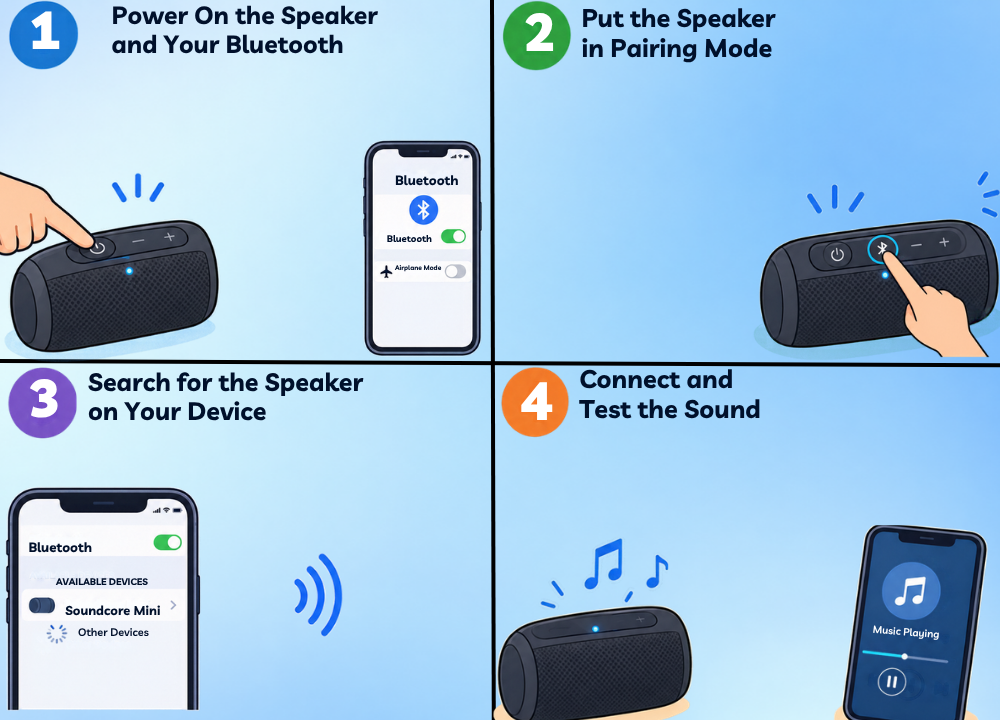
The Four Steps That Work on Almost Any Device
All Bluetooth speakers go through the same steps: power on, pair, search, and connect. The names of the buttons and menus are altered.
That sameness arises from the common standard. Learn these four steps once, and you will be able to handle any speaker on any device. Then it’s merely the right menu, which the sections below cover.
Step 1: Power On the Speaker and Your Bluetooth
Press the speaker power button first. It is on when you see a light come on or hear a short beep.
A low battery can prevent a speaker from working or cut it off mid-song, so be sure to charge it fully first. Now turn on Bluetooth on your phone or laptop.
On Android, slide down and tap the Bluetooth icon. Also, make sure to switch off Airplane Mode because this disables Bluetooth altogether.
Step 2: Put the Speaker in Pairing Mode
When you turn on a speaker, it’s not always ready to connect. This is where most folks go wrong.
Normally, you hold the Bluetooth button down for a couple of seconds. The light starts flashing, showing that the speaker is in pairing mode. Some of the speakers also make a little noise to verify it.
The speaker might still be connected to a previous phone it was paired with. Turn Bluetooth off there so your new device can see it.
If it asks for a PIN, try 0000 or 1234. If that doesn’t work, consult the handbook.
Step 3: Search for the Speaker on Your Device
When Bluetooth is active, your phone or laptop starts scanning automatically. Watch the list and look for your speaker’s name, which is usually the same as the brand and model.
If it doesn’t come up, reload the list or hit the pairing button again. Allow a few seconds for the scan as well; it can take a little while for a speaker to show up.
The 2.4 GHz frequency is used by Bluetooth, therefore, a weak signal can be masked by walls and routers. Put both gadgets in the same room and near together, with nothing in between.
Step 4: Connect and Test the Sound
When your speaker’s name appears, tap it. A good link usually finishes with a chime from the speaker.
Now play a short clip and carefully turn up the volume to make sure it is working. Sometimes the sound persists on your phone after you pair it.
Connect a Bluetooth Speaker to a Phone or Tablet
Phones and tablets manage Bluetooth using the Settings app. The four processes are the same, although the menu names vary by brand.
Locate your device below and follow its exact path. Each has a simple remedy too, so you spend less time trapped.
Android Phones and Tablets
Google’s help sites indicate this path. Some manufacturers rebrand other products to make yours look a little different.
- Go to Settings, then tap Connected devices.
- New device paired.
- Tap the name of your speaker under Available devices.
- Follow the prompts on screen.
Some speakers use Fast Pair and bypass the menu. Enable Bluetooth and Location. Enter pairing mode and touch Connect on the pop-up. Try to keep the speaker within a foot or two of the person you are speaking to.
Samsung Galaxy Phones
Samsung has Bluetooth under a somewhat different menu. Screens and software are subject to carrier change.
- Go to Settings and tap on Connections.
- Tap Bluetooth and turn it on.
- Place the speaker in pairing mode.
- Tap your speaker under Available devices.
- If a dialog prompts you to confirm, tap OK.
To get there fast, swipe down with two fingers and then press and hold the Bluetooth symbol. Samsung recommends having the two devices within one meter (approximately three feet) of each other when pairing them.
iPhone and iPad
Apple puts the entire process within Settings. The iPad follows the same path.
- Open Settings, then tap Bluetooth.
- Check that the Bluetooth switch is on.
- Enter pairing mode
- Tap the speaker’s name when it shows up.
- If the speaker requests a PIN, enter it.
If it still would not join, switch the speaker off and on. Apple’s advice suggests a range of around 33 feet, or 10 meters, so be sure you’re well inside that.
One strange trap: Bluetooth toggle in the Control Centre just disconnects gadgets until the next day. That tap can be the reason if your speaker abruptly stopped participating.
Old Button Phones
Bluetooth-enabled classic button phones stretch back to the 2000s, with the first Bluetooth phones appearing on store shelves in 2001. Check your handbook, as menus vary by brand. This is what a normal Nokia route looks like.
- Press Menu and Select Settings.
- Tap Connectivity, then Bluetooth.
- Turn on Bluetooth.
- Choose to connect an audio device. Then choose your speaker.
The only caveat is that music requires the A2DP profile. A very ancient phone may pair without it and be silent.
Connect a Bluetooth Speaker to a Laptop or Computer
Computers use the same 4 stages; however, the options differ with the operating system. Find yours below.
Both of these paths end with a step to set the speaker as your sound output. Once linked, most computers will automatically reconnect when the speaker is powered on and within range.
Windows 11
Microsoft’s official pairing guide for Windows 11 begins in Settings. Ensure the Bluetooth switch is in the On position.
- Select Start, then Settings.
- Open Bluetooth & other devices. Turn on Bluetooth.
- Select Add device and then Bluetooth.
- Choose your speaker from the list.
- Choose Done when Windows tells you it is.
- Select your speaker by clicking the sound icon in the taskbar.
Windows 11 also supports Swift Pair that brings a pop-up for a supported speaker. If the speaker is hidden, switch Bluetooth off for 10 seconds, then back on.
Windows 10 and Older
Windows 10 takes a somewhat different path through the Devices menu.
- Start, Settings, Devices
- Turn on Bluetooth and open Bluetooth & other devices.
- Select Add Bluetooth or other device, then Bluetooth.
- Tap your speaker, then tap Done.
- Click the sound icon on the taskbar and select your speaker.
Microsoft stopped free Windows 10 upgrades on October 14, 2025, but your PC is still running, so these instructions still work. On Windows 7, the approach is through Control Panel and then Devices and Printers.
Mac
Apple’s Mac handbook opens in System Settings. In the sidebar, select Bluetooth.
- Open System Preferences and click on Bluetooth.
- Switch on the speaker and go into pairing mode.
- On Nearby Devices, locate the speaker.
- Click Connect. If prompted, Accept.
If you still hear sound coming from the Mac itself, go to Sound options, choose Output, then select your speaker.
Chromebook
It all begins with a Chromebook at the clock in the lower corner.
- Choose time at the bottom right.
- Select Bluetooth and switch it on.
- Select Pair a new device.
- Put your speaker into pairing mode.
- Follow the instructions on the screen.
Chromebooks also support Fast Pair and might get a Connect prompt. You can’t connect a phone to a Chromebook via Bluetooth, but you can with speakers.
Connect a Bluetooth Speaker to a TV, Streamer, or Console
Your TV, streaming stick, or game console can also output to a Bluetooth speaker. Their Bluetooth choices are only further in the audio settings.
Steps 1-4 are still the same, but the path is different, and a couple of devices need a solution. Here are the places to check on the most prevalent ones.
Smart TVs
On many Samsung TVs, Bluetooth is hidden under the sound menu. Other brands call it something else, so check your manual.
- Turn on the speaker and press and hold the pairing button.
- Tap Home and then open Settings.
- Go to Sound and then Sound Output.
- Select Bluetooth Speaker List.
- Choose your speaker to complete.
If your TV doesn’t have Bluetooth, a tiny adaptor in the audio port can add it. Samsung says to use Wi-Fi, optical, or HDMI ARC for the greatest sound when you can.
Google TV and Android TV
Google puts speaker pairing under Remote & Accessories.
- From the home screen, tap Settings.
- Select Remote & Accessories and then Pair accessory.
- Place the speaker in pairing mode.
- Select the speaker from the list.
- On the request screen, choose Pair.
Bluetooth audio may not work on 2016 and older sets, Sony says. These streaming devices also play through one audio device at a time.
Fire TV Stick
Bluetooth is found in the Controllers menu on a Fire TV Stick.
From the home screen, tap the gear icon.
Select Controllers & Bluetooth Devices.
Choose Other Bluetooth Devices and click Add.
Set your speaker to pairing mode.
When you see the speaker, select it.
If it doesn’t pair, unplug your Fire TV, turn off the speaker, and reboot both. Once paired, the volume can even be controlled with the Fire TV remote.
Nintendo Switch
Bluetooth audio needs the Switch to be updated to system version 13.0.0 or above.
– Select System Settings from the HOME Menu.
Select Bluetooth Audio, then Pair Device.
Place the speaker in pairing mode.
Wait for the name and click it.
Nintendo warns it could take as long as around 40 seconds for the name to show up, so be patient. The speaker also needs the A2DP profile and SBC codec. Nearby 2.4 GHz Wi-Fi may create interference.
PlayStation and Xbox
Now for the frustrating part. Out of the box, the PS5 and Xbox Series X don’t support Bluetooth audio. Both have the hardware, but Sony and Microsoft decided to leave the feature off.
You have two workarounds left. Plug a USB Bluetooth adapter into the console and then pair the speaker to the adapter. Or connect to a Bluetooth TV and let the console stream audio over HDMI.
Common Problems and How to Fix Them
Even with the correct steps, little bumps crop up. Almost all go back to a few causes.
Find your problem below and attempt the remedies in order. Most are under 1 minute.
The Speaker Never Appears in the List
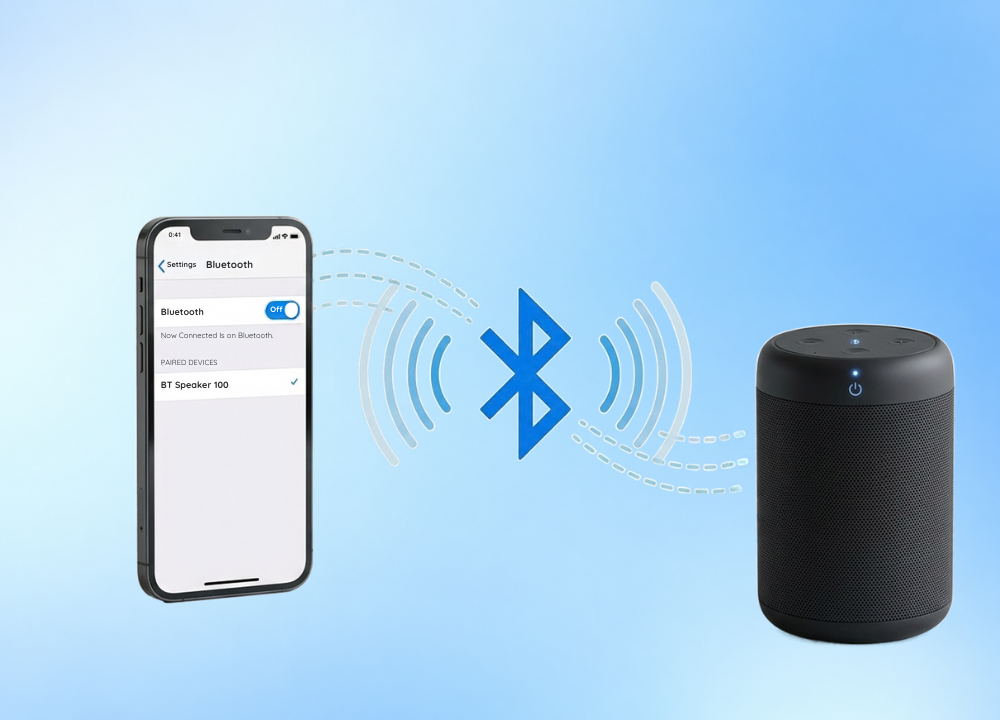
The speaker is still connected to an outdated phone or laptop. The common cause is a stale connection. Turn off Bluetooth on the old device, then try searching again from the new device. If it is still concealed, push the pairing button until the light blinks and pull the two devices closer.
It Connects but Plays No Sound
Usually this implies that the audio still gets to your phone or computer, not the speaker. Select the speaker as the output in your sound or media settings. On an old phone, the speaker might not have the A2DP profile so it pairs but never plays.
It Keeps Cutting Out or Lagging
Almost always, the dropouts are interference or distance. Bring the speaker closer, but keep it away from your Wi-Fi router and microwave, which compete on the same 2.4 GHz band. On a console like the Switch, a 5 GHz Wi-Fi network can also help stabilize the sound.
It Won’t Switch to a New Device
A speaker only ever connects to one main device at a time, and always to the last one it knows. First, switch off or turn off Bluetooth on the old device and then get back into pairing mode on the speaker. On an iPhone, you may also need to tap the info symbol next to the speaker, then select Forget This Device.
Conclusion
One pattern is to connect to a Bluetooth speaker: turn on, pair, search, connect. Thanks to the shared Bluetooth standard, that order applies to a phone, a laptop, a TV, or a console. Most “Device not found” issues are settings errors, not a malfunctioning speaker.
When things go bad, the fixes are straightforward. It continues to look for the old device. Turn off Bluetooth on the old device. If you do not hear a sound, set the speaker as your output. Move it closer to avoid interference. Some gadgets like PS5 and Xbox Series X require a USB converter or a TV with HDMI connectivity.
Also, knowing where your audio is going is helpful. A newer feature called Auracast, built on Bluetooth LE Audio, was released with Bluetooth 5.2 in 2022 and lets a single source broadcast sound to several speakers at once without pairing. Just know that it only works on modern devices, so most older speakers can’t utilize it now.