
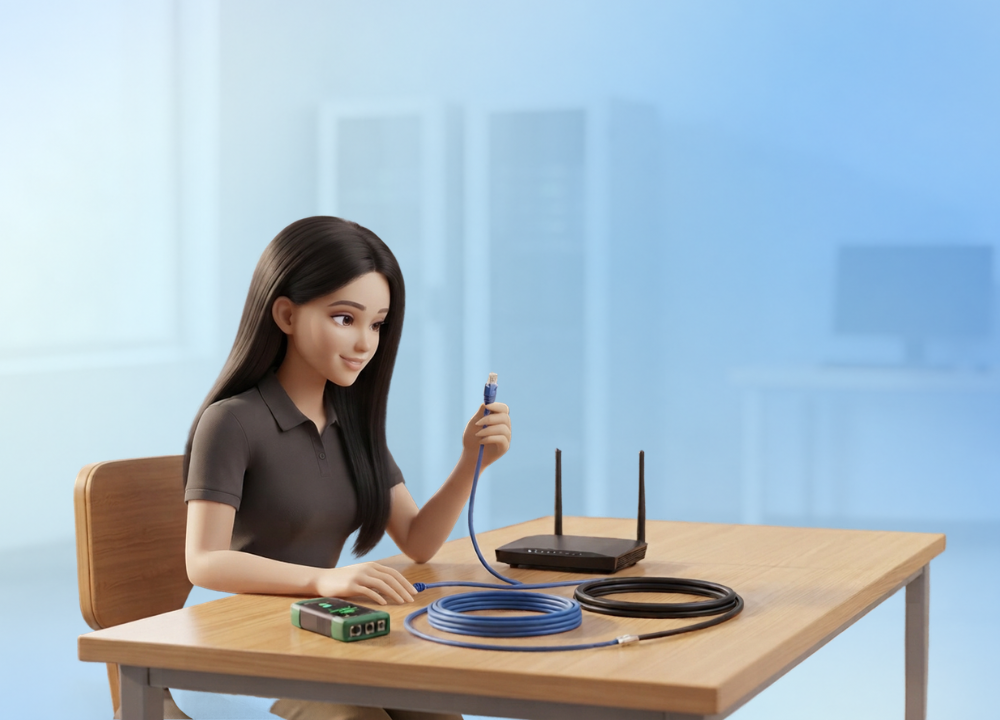
It can feel like walking into a hardware lab and being presented with a pop quiz you didn’t study for when you see a table full of wires, adapters, and unlabeled boxes. This activity is designed to prepare you for that time. Identifying network technologies is looking at a piece of equipment, a cable, or a signal reading and properly naming the technology being used behind it based only on the clues you can see, measure, or test.
This is important because real networks are always developed using more than one technology. A small workplace might have copper Ethernet at the desks, Wi-Fi in the conference room, and a fiber link bringing everything out to the Internet. If you can’t distinguish these immediately, troubleshooting becomes a guessing game. A tech who misidentifies a coaxial line for a phone line or a Wi-Fi 6 router for an earlier Wi-Fi 4 router is wasting time chasing an incorrect fix.
The purpose of this lab is to train your sight and your instincts so that when you are out in the field, a connector, a signal readout, or a printed label informs you practically instantaneously what you are working with. This tutorial leads you through each category you’ll be tested on, from physical connections to wireless standards to the internet links that transmit traffic across cities, and the tools that verify your response and the errors that trip people up most.
The Three-Step Method for Identifying Any Network Technology
Before we go into specific cables and standards, it’s good to understand the general approach, because the same reasoning applies no matter what is in front of you. All network technologies leave identifying footprints. A cable has a form and a connector and sometimes a printed label. A wireless signal has a frequency and a naming convention. The service provider that brings the WAN link into the building determines how it gets delivered.
This lab teaches a method in three separate steps:
Identify the general category. Then determine if you are looking at a wired technology, a wireless technology, or a WAN or broadband connectivity. That gets you right out of it straight away.
Use clues by category to help you narrow it down. Use the physical or technical data applicable for that category. For example, a connection shape for wired, or a frequency spectrum for wireless.
Check before you sign. A cursory scan isn’t enough double-check your guess using a tool, label, or reference chart.
The order is important; signals in one category seldom apply to another. A frequency reading tells you nothing about a copper cable, and a connector form won’t assist you in identifying a wireless standard. The single biggest key to completing this fast and right is to keep the categories separate in your head.
Identifying Wired Network Technologies
Wired technologies are the easiest to recognize once you know what to look for, and it all comes down to something you can physically feel and touch. The jacket around the cable, the connection at the end, and the core material within all reveal what you are holding.
Twisted-Pair Cabling and Its Connectors
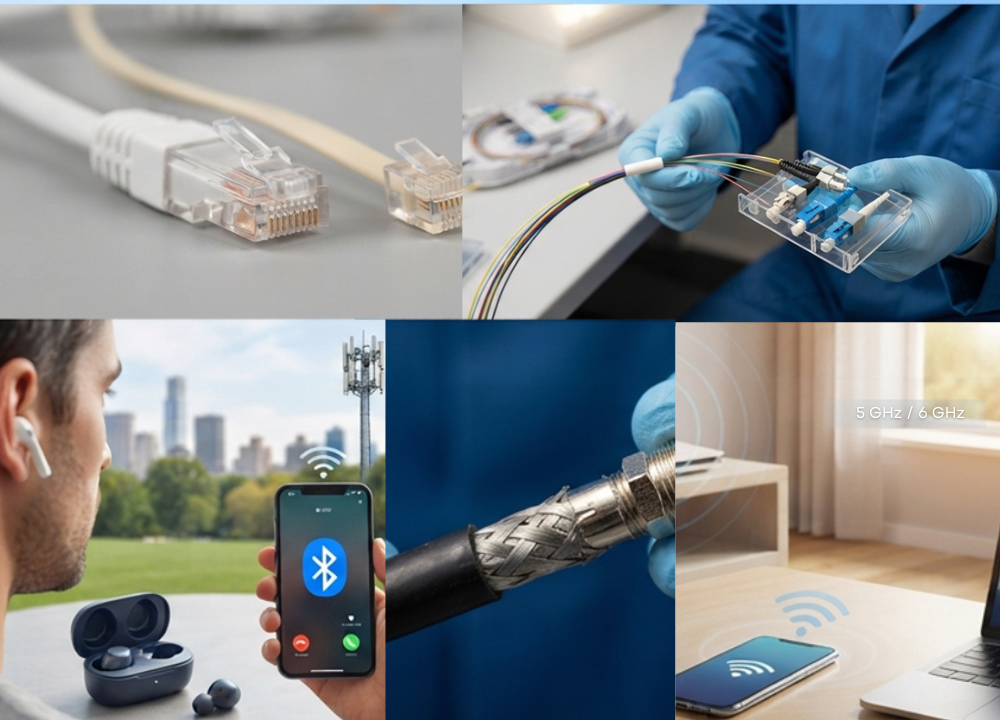
Most Ethernet networks are built on twisted-pair cabling that terminates in an RJ45 connection. The most popular twisted-pair connector is the RJ-45. The RJ-45 connector has eight pins, designed to transfer Ethernet data. It is the eight-pin arrangement that clearly differentiates it from the smaller phone-line connector people commonly confuse it with.
That smaller connector is the RJ11, which is still used on the older phone lines. It has six physical positions, but normally only two positions transmit a signal, and it connects to analog telephone equipment, not to data networks. When placed side by side, the difference in size between the two is clear, and this lab’s first impulse is to recognize that discrepancy on sight.
Fiber Optic Cable and Its Connectors
Copper doesn’t look or feel like fiber optic cable. It transmits light instead of electricity; therefore, it is not affected by the electrical interference that affects copper. Its connectors have a few typical shapes worth noting. Many students get hung up on fiber connectors; therefore, being able to identify these on sight is one of the most useful abilities in the entire lab.
ST (Straight Tip): has a round barrel that twists and locks into place, a bit like an earlier coaxial fitting.
SC (Subscriber Connector): just press it in and hear it click, with the ferrule mostly hidden inside the housing.
LC (Local Connector): a tiny connector that snaps into place much like an Ethernet plug, making it a favorite in cramped equipment racks.
Field technicians commonly reach for LC connections, particularly because their small size makes it much easier to manage busy patch panels. If you can distinguish among an ST, SC, and LC by the way they attach, you have crossed one of the most difficult hurdles in this exercise.
Coaxial Cable
The last of the wired bunch is coaxial cable. It is a little different in that it has a single thick central conductor surrounded by layers of shielding. The architecture was typically employed for cable television transmissions and cable modem connections. Once you’ve touched one, you can’t miss its screw-on F-type connection, a reliable giveaway that you’re looking at coax and not any sort of twisted-pair cable.
Quick Reference: Wired Connectors
| Connector | Cable Type | Key Identifying Feature |
| RJ45 | Twisted-pair (Ethernet) | Eight pins, wider than RJ11 |
| RJ11 | Phone line | Six positions, only two used, smaller |
| ST | Fiber | Round barrel, twist and lock |
| SC | Fiber | Square, push and click |
| LC | Fiber | Small, latches like Ethernet |
| F-type | Coaxial | Screw-on, single center pin |
Identifying Wireless Network Technologies
You can not touch wireless technologies to identify them. There is no physical cable to check. Instead, you utilize the standard name, the frequency band in use, and the general range and behavior of the signal. They are different than the wired world, but if you learn the patterns, they are just as dependable.
Reading Wi-Fi Generations and Standards
Wi-Fi now has a simple generation number instead of the old, hard-to-remember technical nomenclature. This generational numbering was adopted by the Wi-Fi Alliance in 2018 specifically to let regular users and technicians see at a glance what generation a device supports instead of having to interpret sequences like “802.11ax.”
The lab requires learning the mapping between each generation and its underlying IEEE 802.11 standard. The current ones are summarized in the table below:
| Wi-Fi Generation | IEEE Standard | Bands Used |
| Wi-Fi 4 | 802.11n | 2.4 and 5 GHz |
| Wi-Fi 5 | 802.11ac | 5 GHz |
| Wi-Fi 6 | 802.11ax | 2.4 and 5 GHz |
| Wi-Fi 6E | 802.11ax (extended) | adds 6 GHz |
| Wi-Fi 7 | 802.11be | 2.4, 5, and 6 GHz |
The big thing that trips people up is the distinction between Wi-Fi 6 and Wi-Fi 6E. They both utilize the same 802.11ax standard, but only Wi-Fi 6E goes up into the 6GHz range. Based on 802.11be, Wi-Fi 7 goes even further with broader channels and a feature called Multi-Link Operation, which enables a device to use multiple bands at the same time for better peak speeds.
Using Frequency Bands as a Fingerprint
One of the most obvious wireless clues is the frequency band used by a device, as each band works differently:
2.4 GHz: Longer range but slower data transmission. Has to compete with other household equipment like microwaves and cordless phones; thus, there is regular interference.
5 GHz: far better throughput, a cleaner, less-crowded signal environment, but at some range expense.
6 GHz: the newest band, and the least congested because relatively few devices use it presently.
The 6 GHz band is a really valuable identifier. It’s only available on Wi-Fi 6E and Wi-Fi 7 devices, so you can immediately know you’re looking at one of those two newer standards if you see 6 GHz capability.
Bluetooth and Cellular
Two other wireless technologies complete this group. Bluetooth exists in the wireless realm but acts somewhat differently than Wi-Fi. It works over a considerably shorter range, connecting devices in pairs rather than broadcasting to an entire network, and normally appears to connect peripherals such as keyboards, mice, and headsets rather than transmitting network traffic.
Cellular technology has its own generation indicators, the ubiquitous 4G and 5G identifiers. Cellular, which uses towers spread out across a vast geographic region rather than a single access point a few meters away like Wi-Fi, stays operating as you walk across a metropolis.
Identifying WAN and Broadband Technologies
WAN technologies connect networks over a long distance. The technique to recognize them is to designate them by service type, not by the cable lying on the desk. This is the category that students most confuse with LAN-level wired technology, as some WAN connectivity still comes in over familiar-looking copper or coaxial cable. The true answer is to look at how the service is delivered and trace the connection back.
DSL
DSL uses the same copper lines that you use to make telephone calls to give Internet service, but it separates the connection so that data and phone signals can go through at the same time. The biggest giveaway that you have a DSL connection is that there will be a splitter or filter placed near the phone jack to separate the two signals.
Cable Broadband
Cable broadband is delivered using coaxial cable – the same infrastructure that used to just deliver television. The giveaway is that a cable modem connects to a coax connection instead of a phone line. The cabling looks like ancient TV cable, so you want to be sure it is genuinely providing internet access and not just transmitting a television signal.
Fiber WAN
Fiber WAN service delivers data across lengthy sections of fiber optic cabling directly into a building, normally ending at an Optical Network Terminal and then switching to regular Ethernet within. This configuration often gives you much faster speeds than DSL or cable, and a significant identifying hint is the terminal box.
Satellite Internet
Satellite internet is different from all WAN types in that it does not require a physical cable on the ground between the consumer and the provider. One of the most obvious signs you’re using a satellite connection (and not a wired version) is a dish erected outdoors and pointed at a set location in the sky.
Tools That Confirm What You Are Looking At
In a good hardware lab, you are not expected to recognize everything by eye, and in the field a guess is dangerous. There are a number of tools specifically designed to confirm or reveal the technology behind a connection, port, or signal.
Cable testers: Test the continuity and wiring sequence of twisted-pair cable and indicate whether a run is wired correctly and to what standard. It is often the first tool a tech reaches for when a link goes rogue.
Toner probes: when you need to trace a particular cable through walls or dense bundles to find out where a certain line actually leads.
Optical power meters: Verify signal power on fiber lines to certify that the connection is alive and healthy.
Wireless scanners: These enable you to discover nearby network names, the bands in use, and signal strength, which helps you identify wireless standards.
Port scanners and network discovery software: Discover devices already on a network, including their type, manufacturer, and occasionally even the precise hardware model, useful when physical examination is not practicable.
Tools aside, a simple eye inspection is still one of the most reliable approaches there is. Often, manufacturers may print directly on cables and connections and indicate the category or standard straight, sparing you from guessing altogether. Always make checking for a tag one of your first moves.
Common Mistakes and How to Avoid Them
This lab can catch even experienced students off-guard, often because certain technologies appear deceptively similar to the untrained eye. Knowing the common traps in advance saves considerable frustration throughout the activity.
Confusing RJ11 and RJ45. The change in size is slight enough to be missed by a hurried eye. A close comparison is always better than a guess from recollection.
Mixing up fiber connectors. ST, SC, and LC have the same overall purpose, but connect differently. Usually this misconception is fixed forever by dealing with a few real examples.
Assuming all coax is cable broadband. It may be the older cable TV wire, or the Internet may be carried over coaxial cable. Check what it truly connects to.
Misreading Wi-Fi 6 as Wi-Fi 6E. A gadget that says “Wi-Fi 6” doesn’t mean it supports 6 GHz. Only the 6E designation guarantees that band.
Naming a DSL link as cable broadband. Both come via the same familiar cabling near the client and sound the same. Before making a choice, go back to the source by following the link.
Most of these blunders have a common root: labeling a technology from a cursory glance, instead of confirming the hint that characterizes it. It’s nearly always worth giving it another glance.
Frequently Asked Questions
What is the main difference between RJ45 and RJ11 connectors?
The larger eight-pin connector is called RJ45 and carries the Ethernet data. RJ11 is tiny and usually only uses two of its six spaces, and links phone lines. The easiest method to tell them apart is by size difference.
How do I tell fiber connectors apart?
The way they stick. ST twists and locks with a round barrel, SC pushes straight in with a click, and LC is a compact connector that clicks closed like an Ethernet plug. LC is the smallest and most common in narrow racks.
How can I tell which Wi-Fi generation a device uses?
Look at the generation label and the standards it supports. Wi-Fi 6 is 802.11ax, and if a device supports the 6 GHz band, it’s Wi-Fi 6E. Wi-Fi 7 is 802.11be and supports 2.4, 5, and 6 GHz with Multi-Link Operation.
Why is identifying WAN technology harder than wired LAN technology?
Because a WAN link gets its name from the sort of service it uses, not from the cable you see. DSL, cable, and fiber can all appear on familiar-looking cabling near the consumer, so you often have to track the connection back to its source of delivery to describe it accurately.
What single tool is most useful for this lab?
That varies on the technology, but for copper, a cable tester is the most usually reached-for tool, as it rapidly checks wiring and continuity. If you can’t see it physically, your best bet is network discovery software.
Building the Instinct to Recognize Every Technology at a Glance
You truly have to have three different skill sets working together to master this lab. Wired identification is done by touch and sight. Wireless identification is done by standards and frequency. WAN identification is done by tracking the delivery mode back to the source. By keeping those three mental checklists separate, you may proceed rapidly without confusing yourself with clues from different categories.
Using real hardware develops this instinct far more quickly than just memorizing charts. Seeing a real LC connector next to an SC, or a real RJ11 next to an RJ45, builds a kind of muscle memory that lasts well beyond the lab. Charts get you started, but your hands finish the work.
This skill is directly fed into wider networking ability. A professional who immediately knows what they are dealing with spends less time troubleshooting blindly, and more time correcting the true problem, whether it is a dropped Wi-Fi signal, a miswired patch panel, or a fiber link that needs tracing. And because the standards are continually changing (the IEEE publishes new members of the 802.11 family often), this is a skill worth renewing, not acquiring once and forgetting. A little bit of a reminder on cable types, wireless generations, and WAN delivery techniques from time to time helps maintain your recognition sense sharp for whatever hardware arrives on the table next.
Pingback: What Are Some Of The Technologies Used For Home Internet? - Tech Journey Flow
Pingback: System Architecture Design for Hardware Radiocord Technologies - Tech Journey Flow
Pingback: Advanced Hardware Lab 3 3 Identify Memory Technologies - Tech Journey Flow